Dual Boot Installation Guide
Installing TeaLinuxOS alongside another operating system (usually Windows) lets you choose which OS to use every time you boot your computer. This is great if you still need access to another OS but want to explore or transition into using TeaLinuxOS.

What Makes It Different from Single Boot?
The dual boot process is almost identical to the single boot installation — with one key difference:
You’ll be given the option to choose an existing partition (or create a new one) where TeaLinuxOS will be installed, instead of wiping the entire disk.
This ensures your current operating system and files stay untouched.
Quick Steps to Dual Boot
-
Boot from the Installation Media
Use a USB or DVD with TeaLinuxOS and boot your computer from it. -
Select “Dual Boot” Installation Type
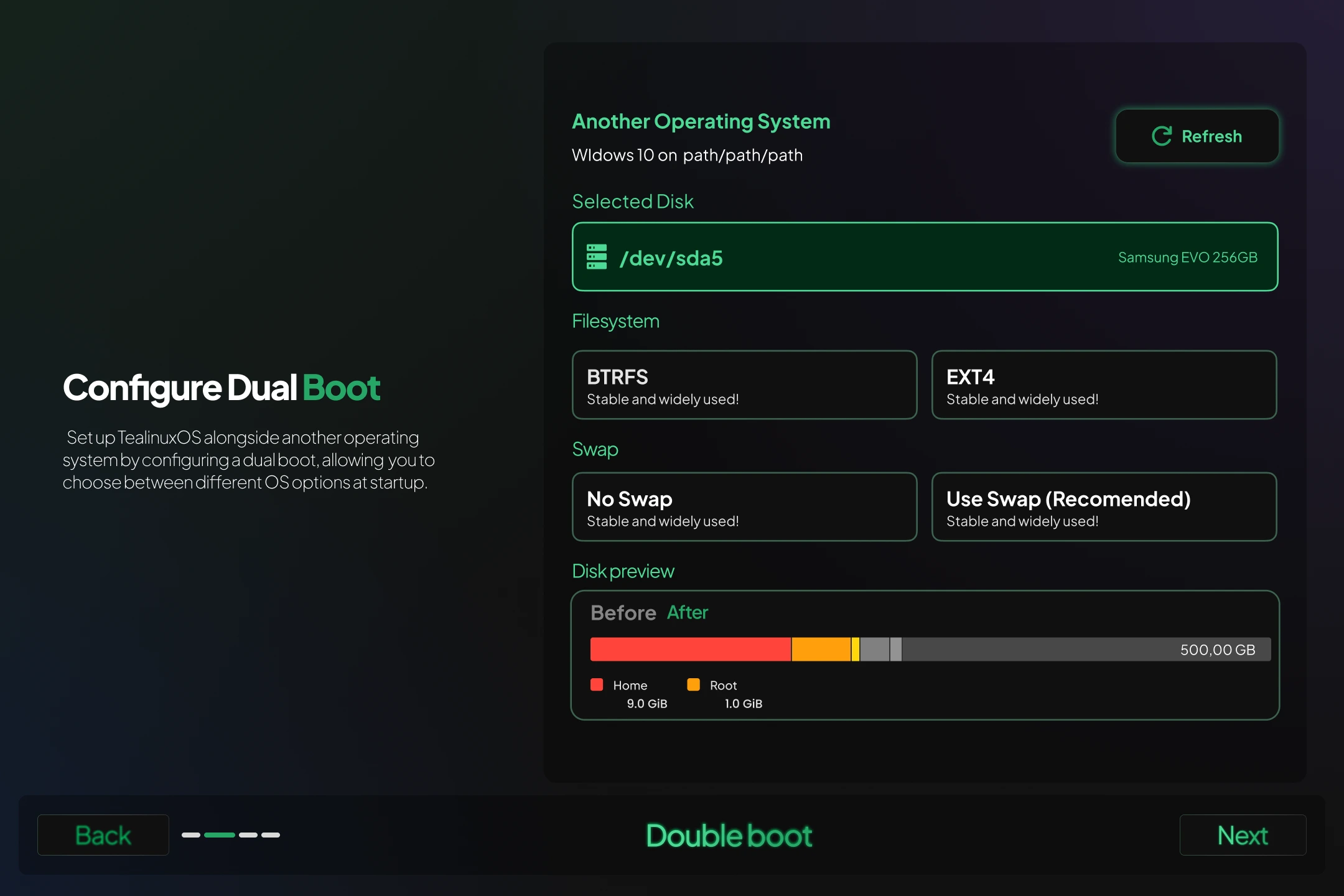
On the installation screen, choose Dual Boot.
You’ll see a list of partitions — pick one that has enough free space of 20 GB. -
Install TeaLinuxOS on Selected Partition
The installer will set up TeaLinuxOS on the partition you selected, and also configure a bootloader so you can choose between OSes on startup. -
Reboot and Choose OS
After installation, restart your computer. On boot, you’ll see a menu where you can choose between TeaLinuxOS and your other OS.